

GMT operation check and folder structure (Mac)
Section outline
-
-
You installed GMT-5.4.5 and the text editing software (Mi), created a working folder (GMT_exe), and saved the topographic map data (etopo1) in GMT_exe, right?
* ETOPO1_Bed_g_gmt4.grd (933.5 MB): Please check the file name, file size, and save location.
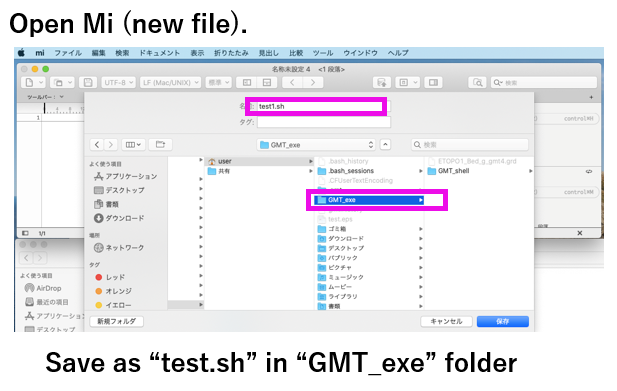
Start Mi, create a new file, and save it with a different name (test.sh). Please also type in the extension “.sh” to indicate that it is a shell script file. Let's save it to /Users/user/GMT_exe/GMT_shell/.
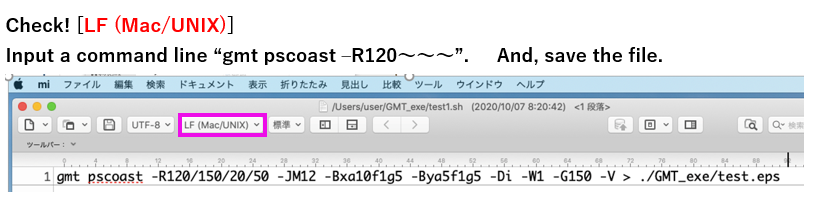
Select "LF (Mac/UNIX)" from the tab at the top of the Mi screen.
(Mac/UNIX should be selected in Mi's initial settings)Type the following in the first line of the test.sh file opened on Mi and save it.
(Just copy and paste the text)gmt pscoast -R120/150/20/50 -JM12 -Bxa10f1g5 -Bya5f1g5 -Di -W1 -G150 -V > ./GMT_exe/test.eps
-
-
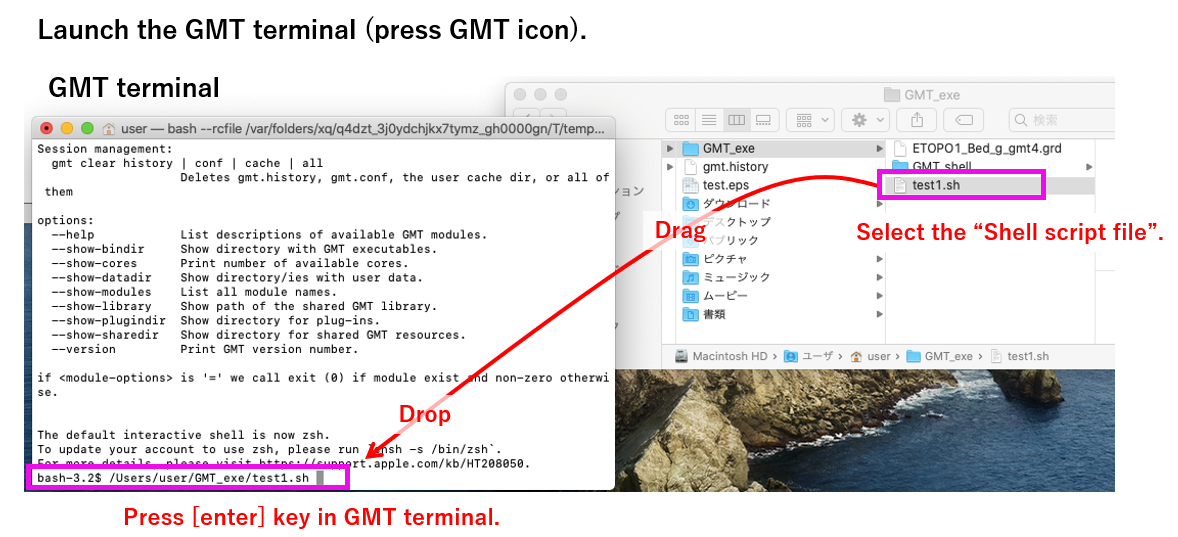
- Start GMT from the launcher (application).
・From the finder, select the test.sh file saved in /Users/user/GMT_exe/GMT_shell/ (one click, do not double click)
- Drag the test.sh file (grab and move it) and drop it on the GMT terminal screen. (This is called Drag & Drop)
- The path of test.sh will be displayed on the GMT terminal. Press the [enter] key in the terminal.
-
-
-
When I tried to run test1.sh in GMT terminal, I got an error.
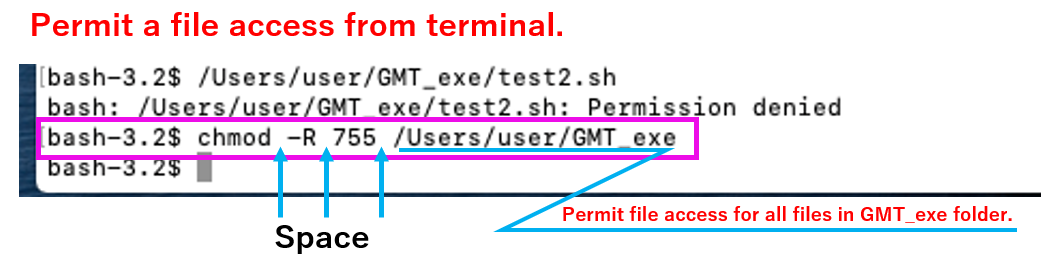
Error display: Permission denied
Your administrator (you) must give you permission to run files stored on your Mac in Terminal.
(Terminal is a tool for operating and configuring your Mac. To prevent unnecessary files such as virus files from being executed without permission, it is designed so that only files to which you have been given access rights can be executed.)

As below,
chmod -R 755 /Users/user/GMT_exe
please type and press Enter.
chmodを知りたければ、各自、ネット検索で調べてください。
After giving terminal access rights to the files under the GMT_exe folder, run the test.sh file in the GMT terminal again. Did the terminal display that the script (instruction statement) was completed?
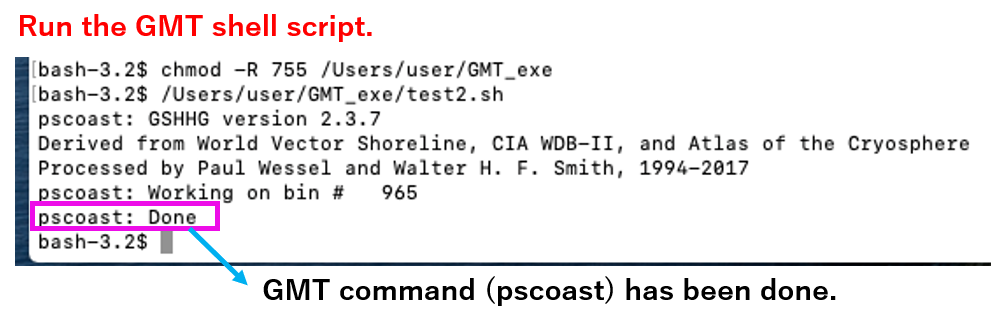
At the end of the test.sh statement, we specify that test.eps should be saved in the working folder (/Users/user/GMT_exe).
Please open that file. If the map of Japan is created as shown below, the operation has been confirmed.
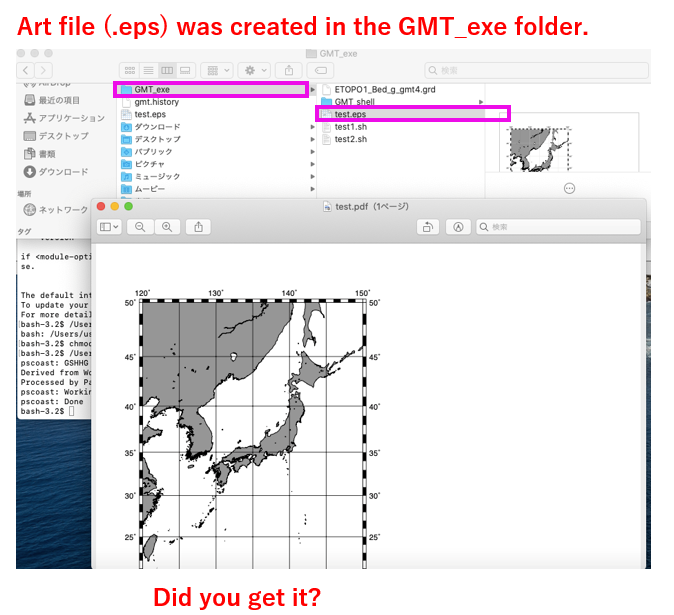
Did you do it?
If not, check whether the topographic map data file (check file name and file size) is saved in the work folder, and whether there are any incorrectly input commands (copy and paste the command above). please.
If not, please download the file below and save it in the /Users/user/GMT_exe/GMT_shell folder. Grant access privileges again and run this file in the GMT terminal.
-
-
-
Displaying the hard disk (Macintosh HD) icon
On the latest Macs, the hard disk (Macintosh HD) icon is not displayed on the desktop screen by default.
Click on the desktop screen to display the Finder menu at the top of the screen. Click "Finder" in the menu to enter the Finder Preferences screen. Therefore, set the hard disk to be displayed on the desktop.
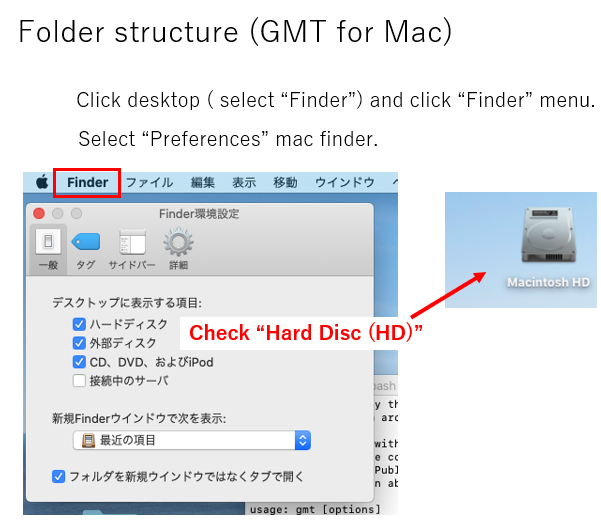
Macintosh HD folder structure
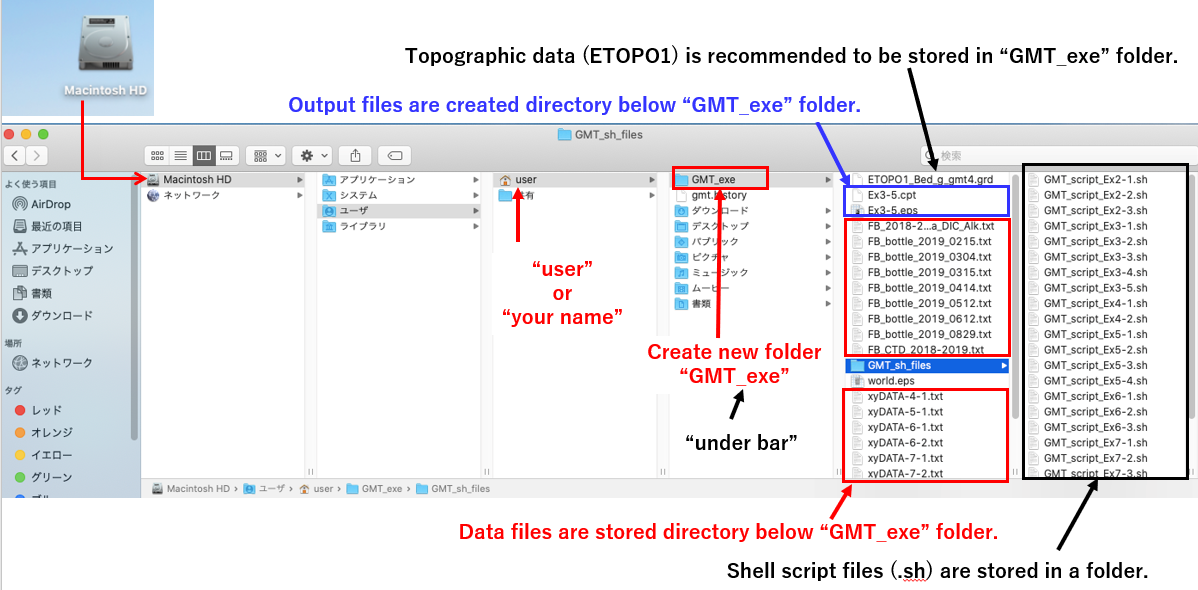
Click the Macintosh HD icon to display the folder structure within the HD. Please create a GMT work folder "GMT_exe" directly under user (administrator's name) as shown below. (" _ " is an underscore)
Please store the data file to be read by GMT directly under this working folder (GMT_exe).
It is a good idea to create a folder with an arbitrary name such as "GMT-script-files" in your work folder (GMT_exe) and store the GMT command statement files (shell script files: .sh files) there.
The topographic map data file (ETOPO1) can be saved anywhere, but it is recommended to store it in the GMT_exe folder so that it does not go missing.
-