Section outline

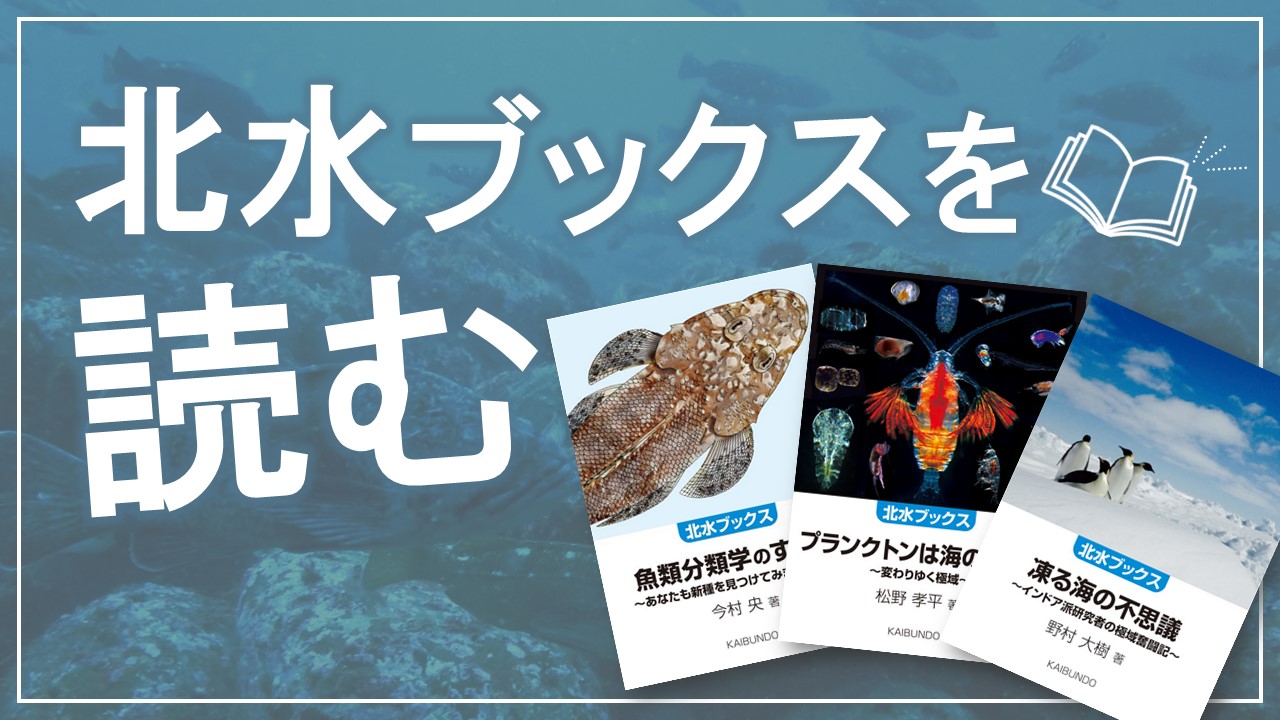
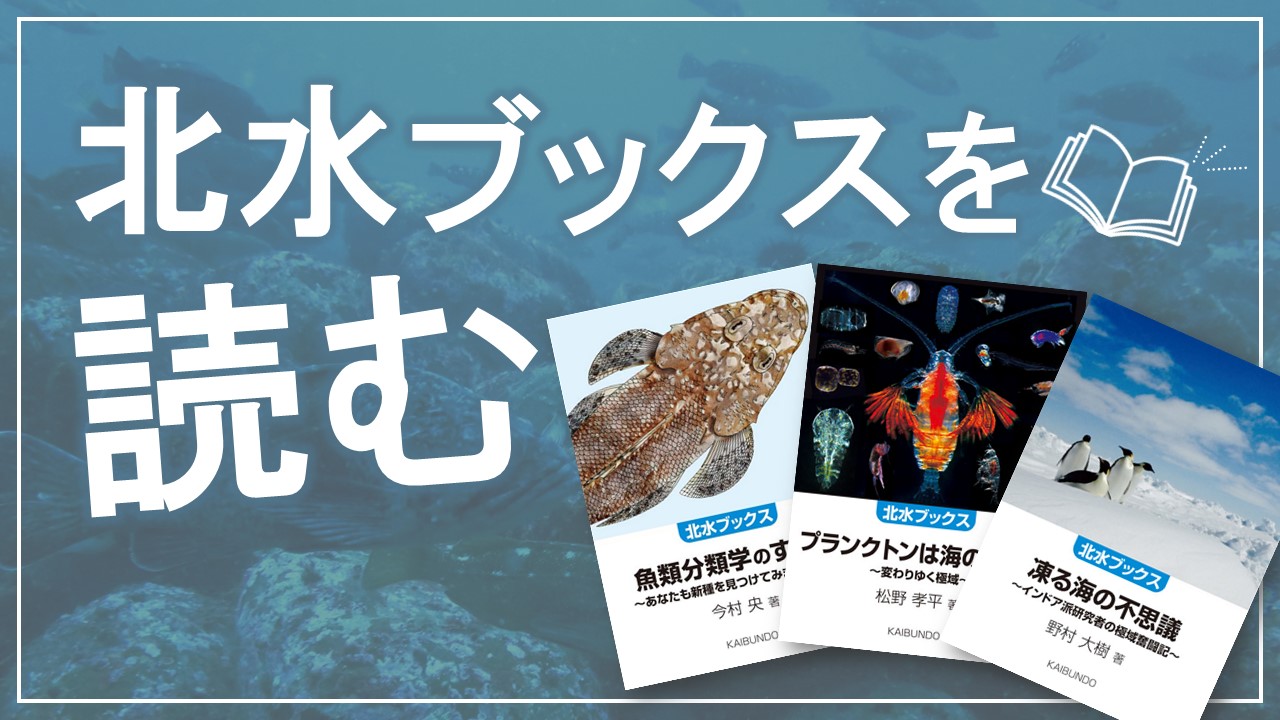
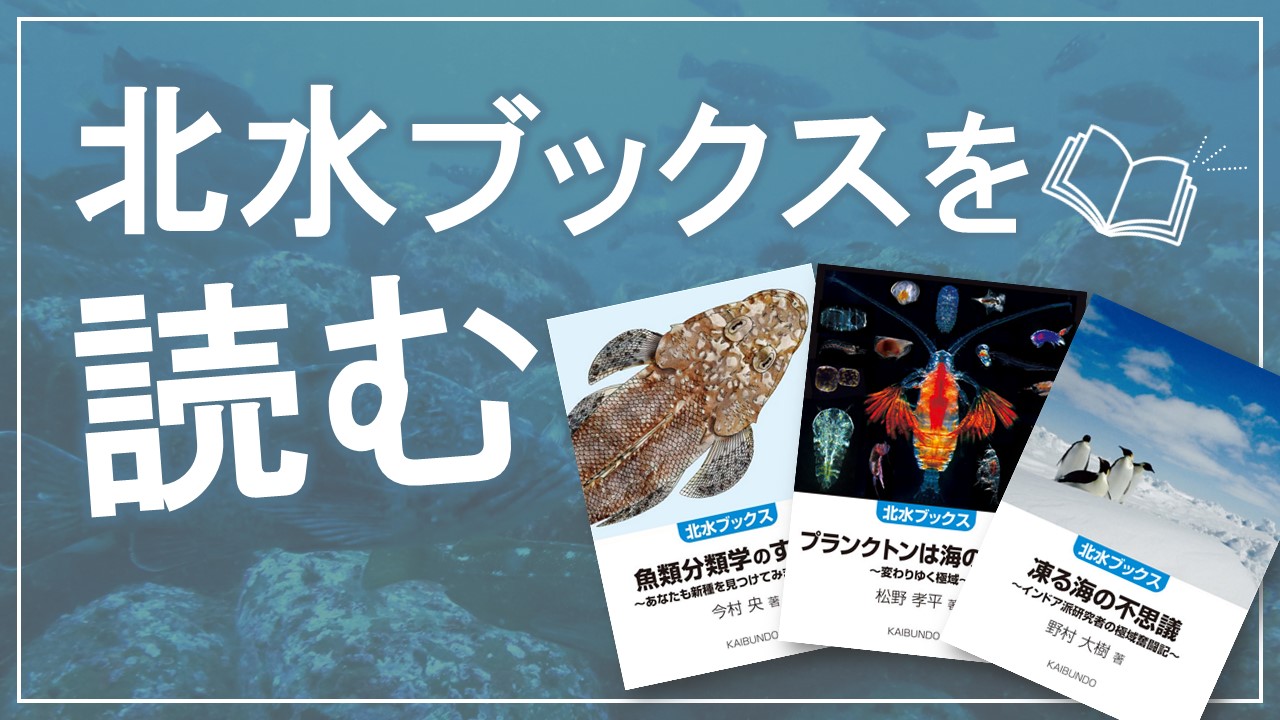
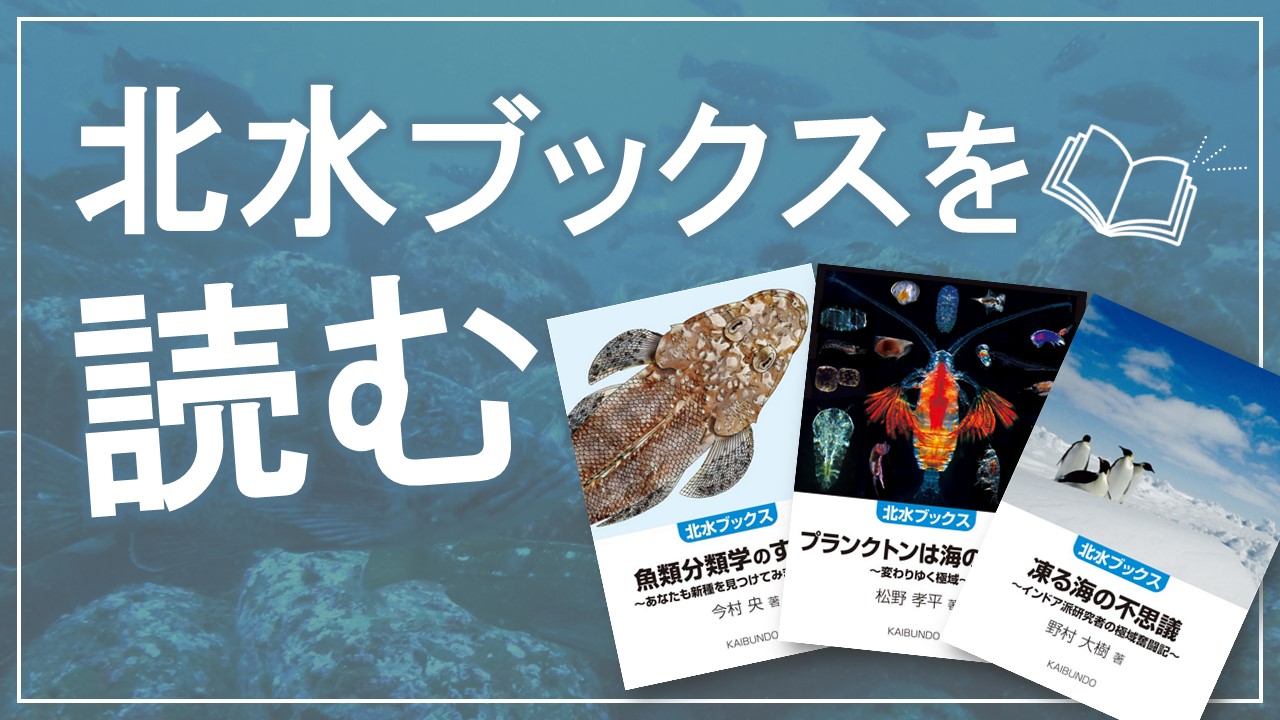
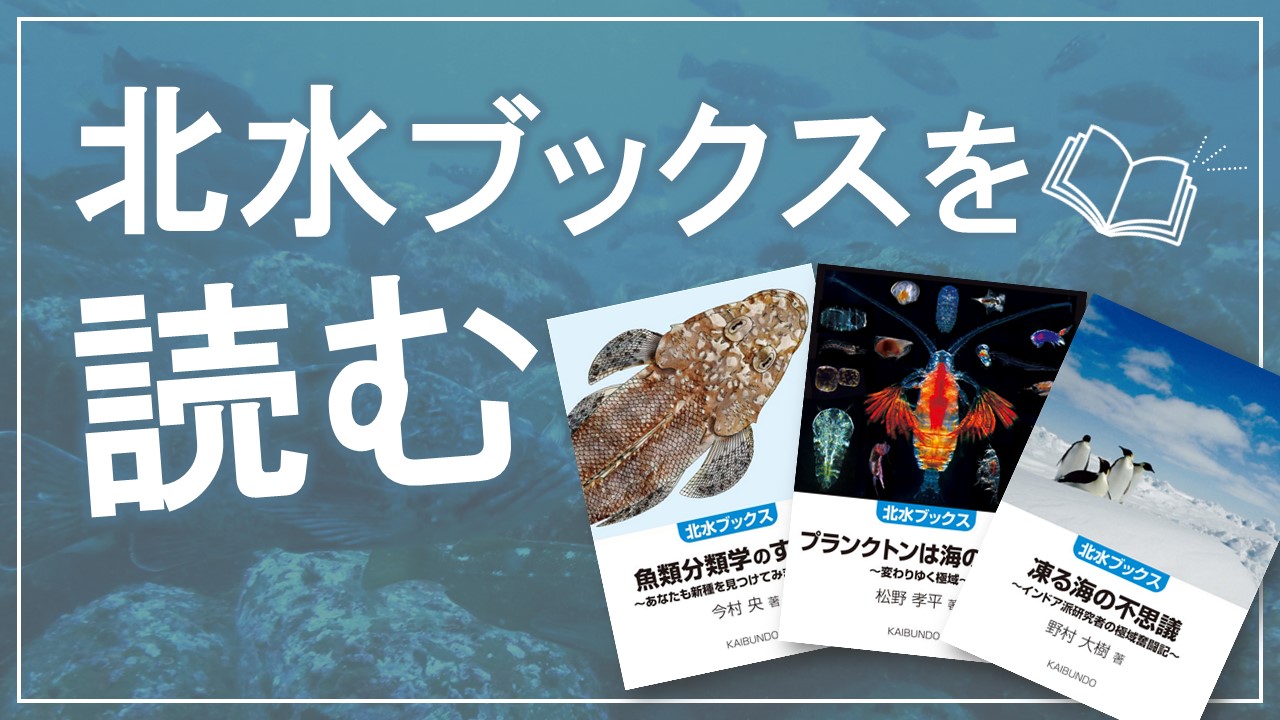
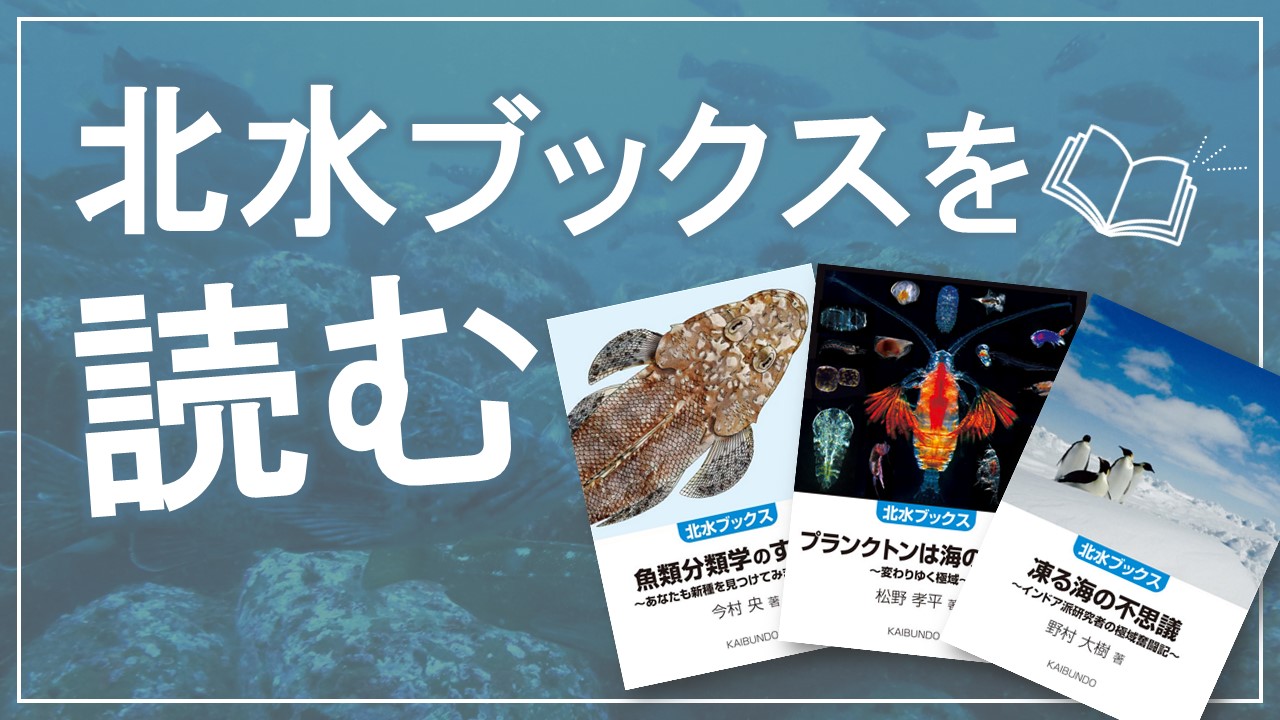
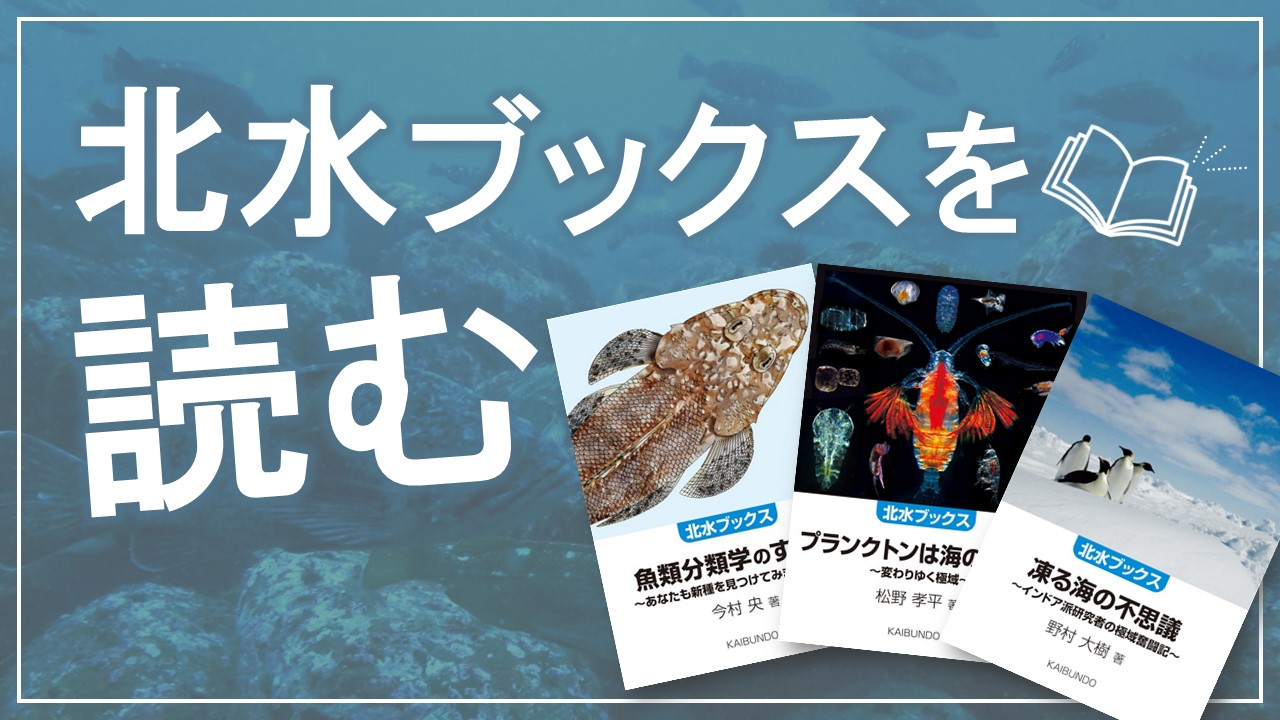
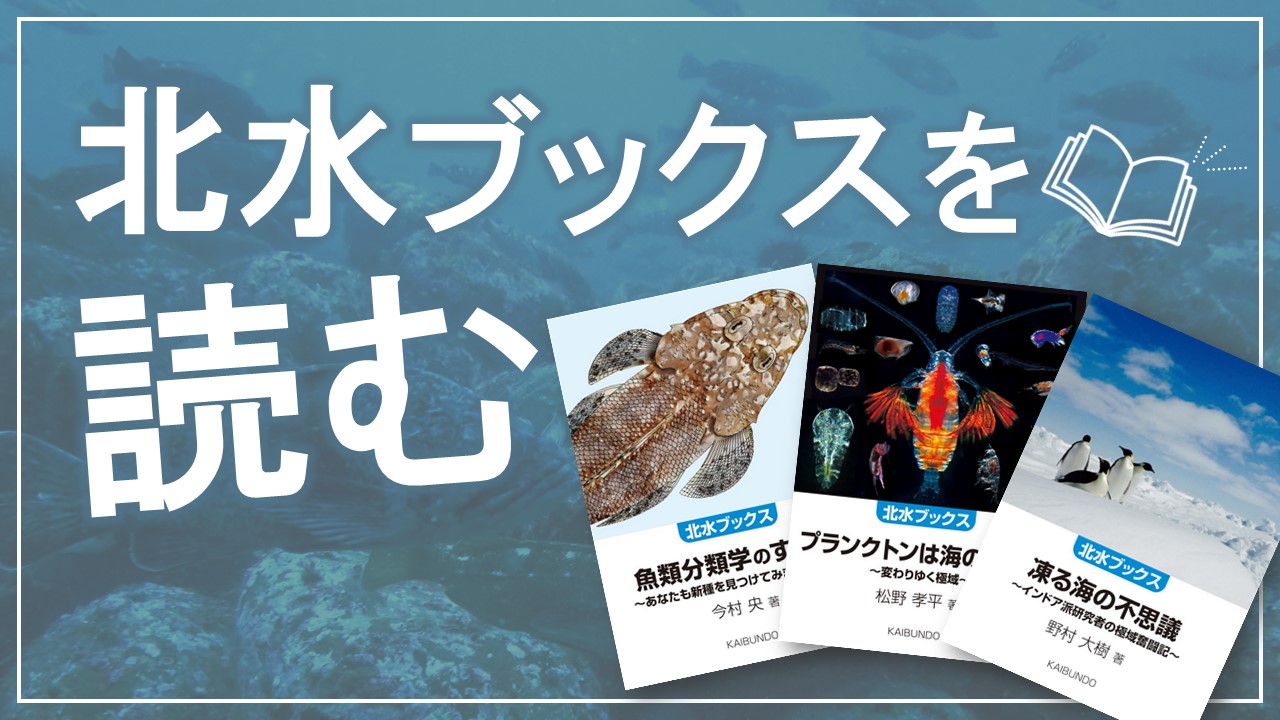
    • リソースの「テキストおよびメディア領域」を用いて配置した画像にシャドウを付けたり、表示位置を変更する方法を紹介しています。

    • <img>タグ内の width=“〇〇” height=“〇〇”の後に
      style=“filter: drop-shadow(rgba(0, 0, 0, 0.2) 2px 2px 3px); "
      を挿入する。

    • <img>タグ内の width=“〇〇” height=“〇〇”の後に
      style="opacity: 1;" onmouseout="this.style.opacity= 1.0; " onmouseover="this.style.opacity= 0.6;"
      を挿入する。

    • <img>タグ内の width=“〇〇” height=“〇〇”の後に
      style="filter: drop-shadow(rgba(0, 0, 0, 0.2) 2px 2px 3px); opacity: 1;" onmouseout="this.style.opacity= 1.0; " onmouseover="this.style.opacity= 0.6;"
      を挿入する。


    • 中央揃えにしたい複数の画像を<div>で囲み、styleにtext-align: center;を指定する。
      <div style="text-align: center;">
      ・・・
      </div>

    • 右揃えにしたい複数の画像を<div>で囲み、styleにtext-align: right;を指定する。
      <div style="text-align: right;">
      ・・・
      </div>

    • 余白なし
      北水ブックスを読む 北水ブックスを読む
    • 周囲に余白3pxずつ
      北水ブックスを読む 北水ブックスを読む
    • styleにmargin: 〇px;を指定すると、周囲に〇pxずつ余白が付きます。
      style="margin: 3px; "

    • 以下の<form  ・・・>~</form>までのコードを任意の位置に挿入します。

    • <form id="cse-search-box" action="https://google.com/cse" style="display: inline; margin: 5px;" target="_blank">
              <input type="hidden" name="cx" value="1fb97f9b35191414f">
              <input type="hidden" name="ie" value="UTF-8">
              <input type="text" name="q" size="20" placeholder="Moodle検索">
              <input type="submit" name="sa" value="検索" style="background-image: linear-gradient(rgb(107, 107, 107) 0%, rgb(54, 54, 54) 100%); color: rgb(255, 255, 255); border: rgb(0, 0, 0); border-radius: 5px; filter: drop-shadow(rgba(0, 0, 0, 0.2) 2px 2px 3px); opacity: 1;" onmouseout="this.style.opacity= 1.0;" onmouseover="this.style.opacity= 0.6;">
      </form>

    • ※style部分は各値を任意の値、テキストに変更可能です。